How to Install IPA Files on iPhone & iPad
An IPA is the file used to install an iPhone or iPad app. For supported apps, you can install a signed copy straight from Apple JR in Safari. You can also download the IPA and sign it yourself with ESign, KSign, or Feather.
Method 1: Install IPA Apps Directly Using AppleJR
- Open AppleJR in Safari on your iPhone or iPad.
- Find your app in the Direct Install iOS Apps section on the homepage. Look for an Install button in the app’s tab.
- Choose an available signing certificate if the app lists more than one. Each Install button uses the certificate already included with that package.
- Tap Install next to the package you want, then confirm when iOS prompts you.
- Open the app from your Home Screen. If iOS asks you to verify the developer, go to Settings > General > VPN & Device Management and follow the prompts for the matching profile. Only trust a developer you recognize.
If you only see Download IPA, follow the manual method below.
Method 2: Install IPA Files Using ESign, KSign or Feather
Step 1: Download Your IPA File
Download the IPA from the app’s developer or use the download option on AppleJR when one is available. Save it somewhere you can find it again in the Files app, like your Downloads folder.
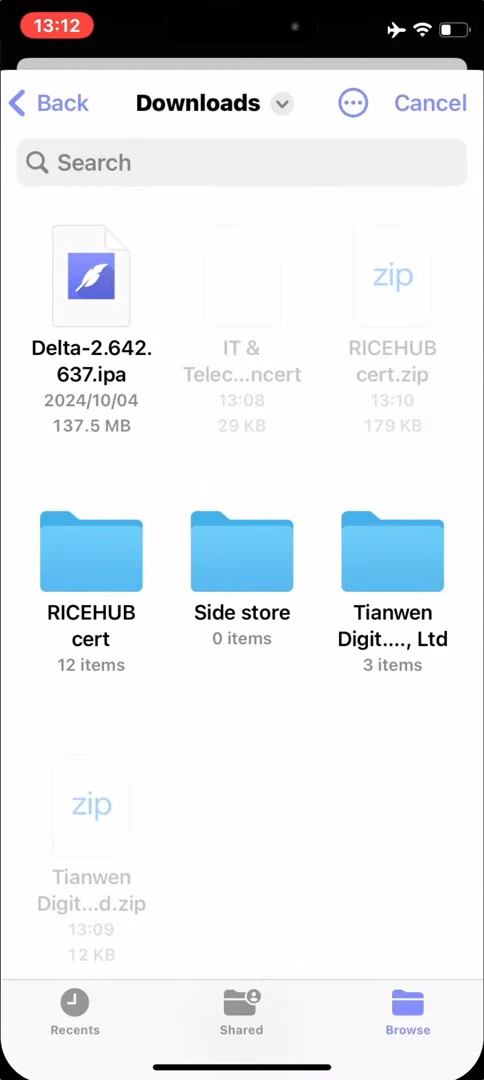
Step 2: Install an IPA Signing Tool
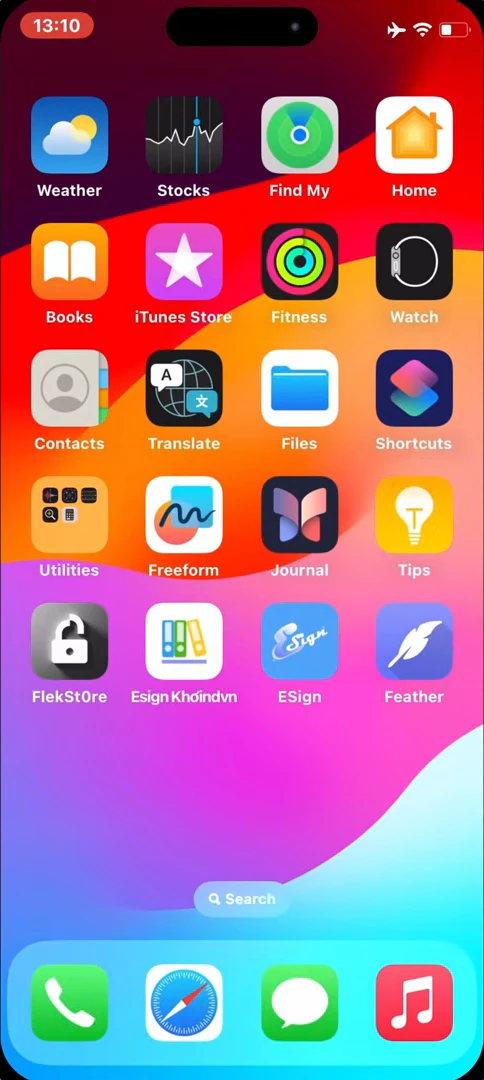
Pick a signing tool such as ESign, KSign, or Feather from the AppleJR homepage. Open its install options and follow the prompts on your iPhone or iPad.
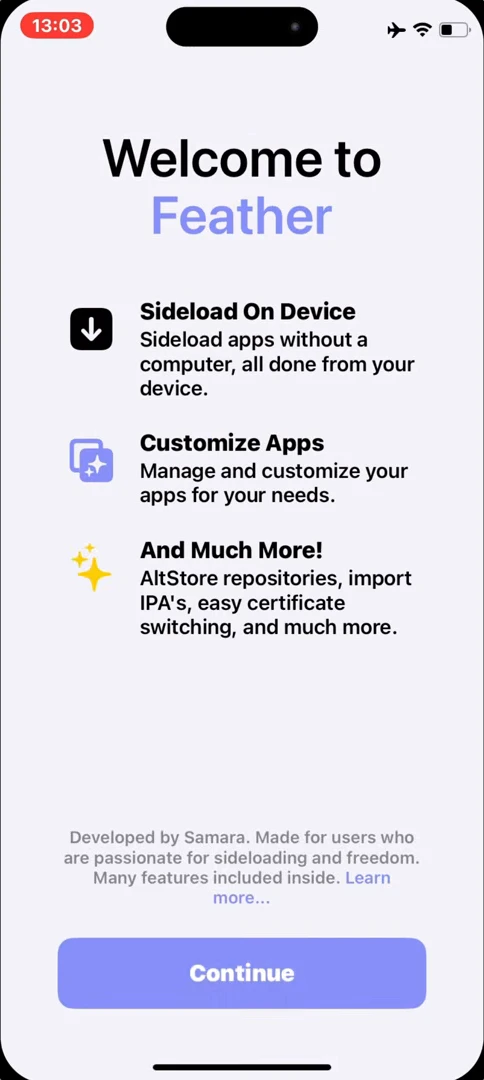
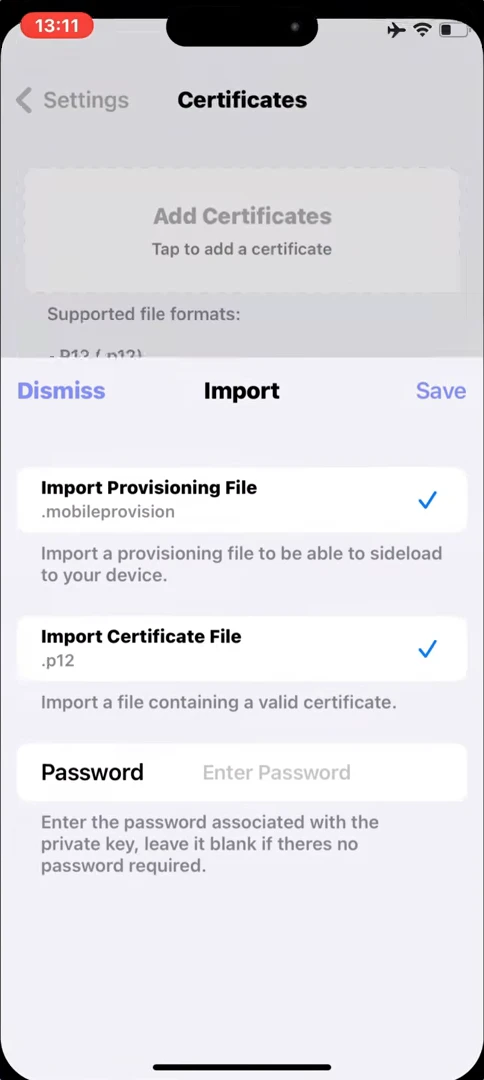
Step 3: Import Your Signing Certificate
Open your signing tool and find its certificate import option. Most signing tools ask for these three things:
- A
.p12file that contains the certificate and its signing key - A matching
.mobileprovisionfile that tells iOS where the signed app can run - The password for the
.p12file
Import both files, enter the password and select the certificate you just added.
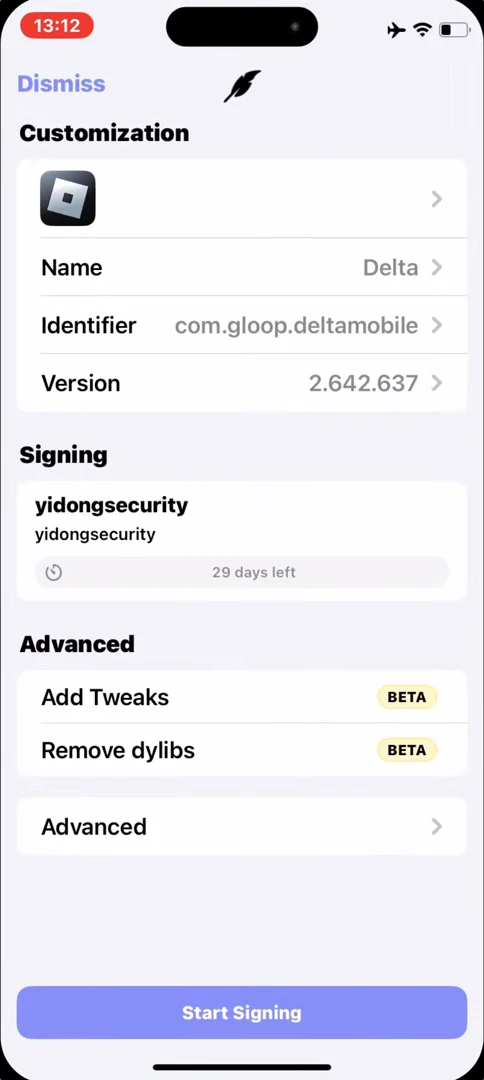
Step 4: Sign and Install the IPA
In your signing tool, open the IPA you saved in Files. Choose your certificate and start signing. When signing finishes, tap Install and confirm the prompt from iOS.
Step 5: Open Your Installed App
Tap the app on your Home Screen. If iOS asks you to trust or verify the developer, open Settings > General > VPN & Device Management and find the matching developer profile. Only trust it if you recognize the source.
Having Trouble Installing an IPA?
If the app won’t install or says Unable to Verify App, check that the certificate is still valid and that the IPA supports your iOS version.
Fix Unable to Verify App